Getting started
From your first upload to the night itself, in eight steps. Planning is free: you only pay when an event runs live.
What you need
- Your songs as files (MP3, WAV, FLAC, M4A…), or a playlist to start from.
- A laptop with Chrome or Edge, connected to the speakers by cable (Bluetooth works too).
- Your phone, as the remote. Guests use their own phones.
1Upload your music
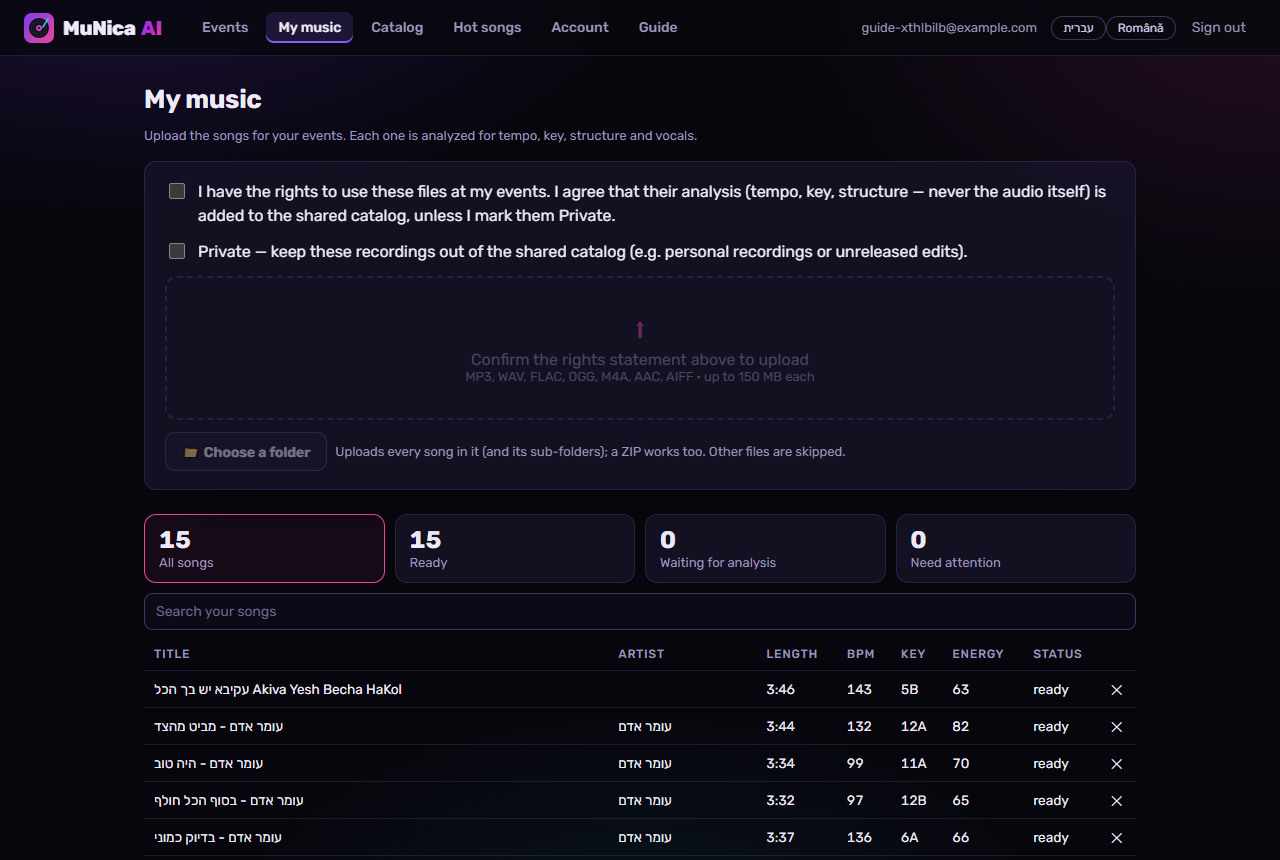
Open My music, tick the rights statement and drop in your songs - one by one, a whole folder, or a ZIP. You upload a song once and use it in every event.
- Each song is analysed for tempo, key, energy, structure and vocals: a few minutes per song. Ready means it can play.
- Mark recordings Private to keep them out of the shared catalog (the audio itself is never shared - only the analysis).
- Songs recorded at a live show are flagged after analysis: keep them or remove them.
- Songs known from other uploads are ready almost at once.
2Create the event
On Events press New event. Give it a name, the type (wedding, bar mitzvah, birthday, company event… or a new type you describe), the date, the start and end times, the number of guests and the language of the event.
- Write a few words in the notes for the DJ: the crowd, the vibe, the must-haves. The AI plans from them.
- Start the timeline from the usual running order for the type, from one of your templates, or from nothing.
3Plan the evening
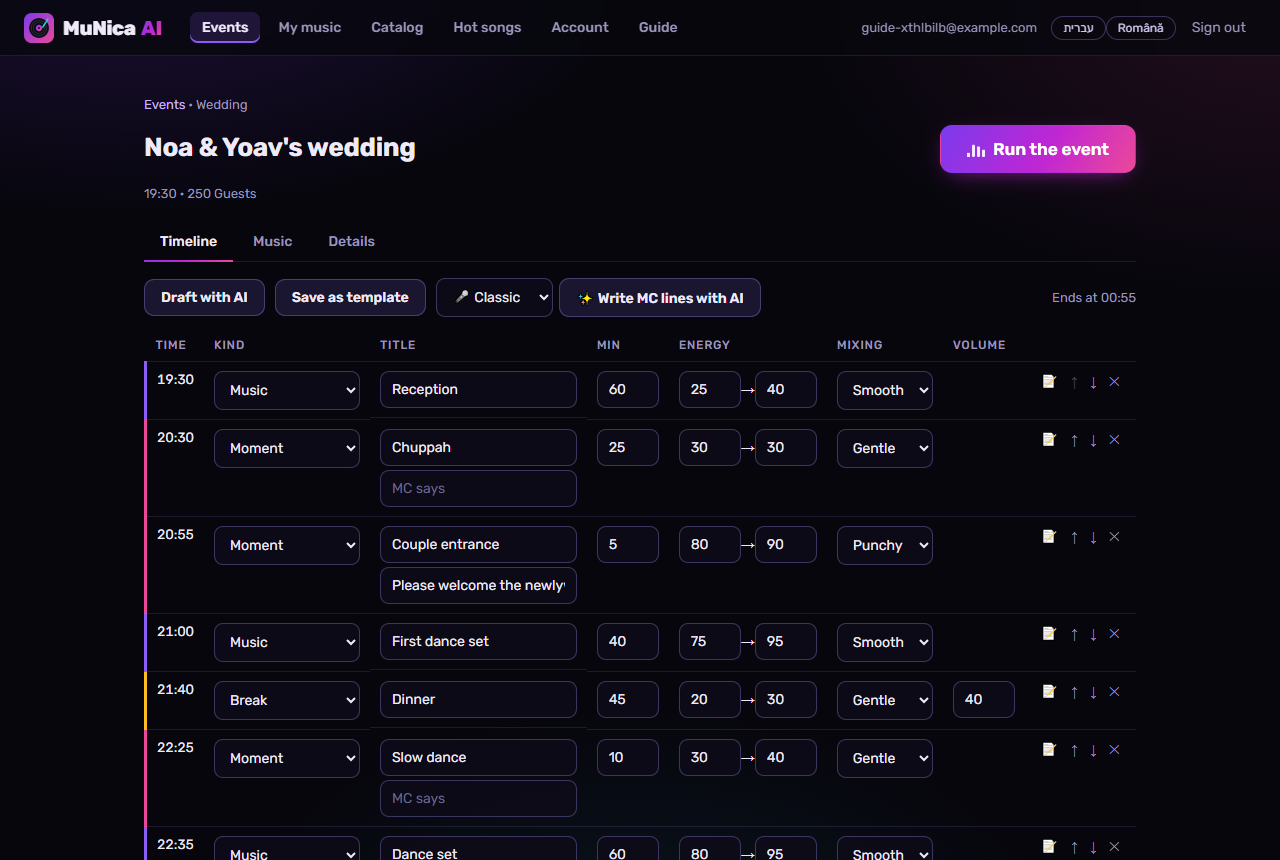
The Timeline tab is the night's running order: music sets, moments (the entrance, the first dance, the cake), breaks for dinner and speeches. Each part has its length, its energy from start to end and how the songs are mixed.
- Draft with AI writes the whole running order from your notes; change anything after.
- Give a moment what the MC says, or let Write MC lines with AI do it. Pick the MC voice from the list next to it.
- A break can keep quiet music under the dinner, or turn the music off for speeches.
- Save as template keeps the running order for your next events of this type.
4Choose the songs
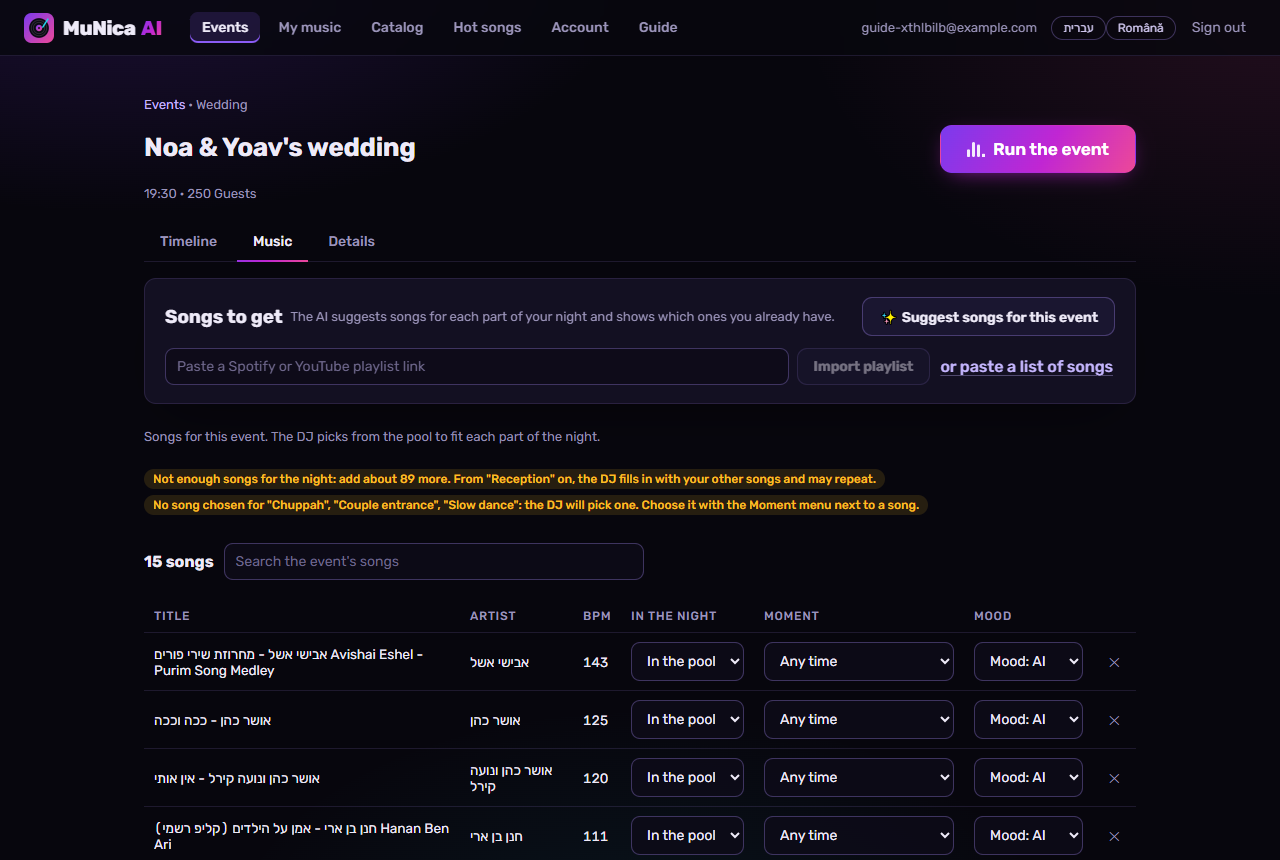
On the Music tab, add the songs for this event: Add all my songs, or search and add one by one. The DJ picks from this pool to fit each part of the night.
- Mark a song Must play or Never play, and use the Moment menu to choose the song for each moment.
- The yellow notes tell you what's missing: not enough songs for the night, or a moment without its song.
- Songs to get: the AI suggests songs for each part of the night and shows which you already have. You can also import a Spotify or YouTube playlist.
- Hot songs (in the menu) shows what everyone is playing this week.
5Get the event ready on the laptop
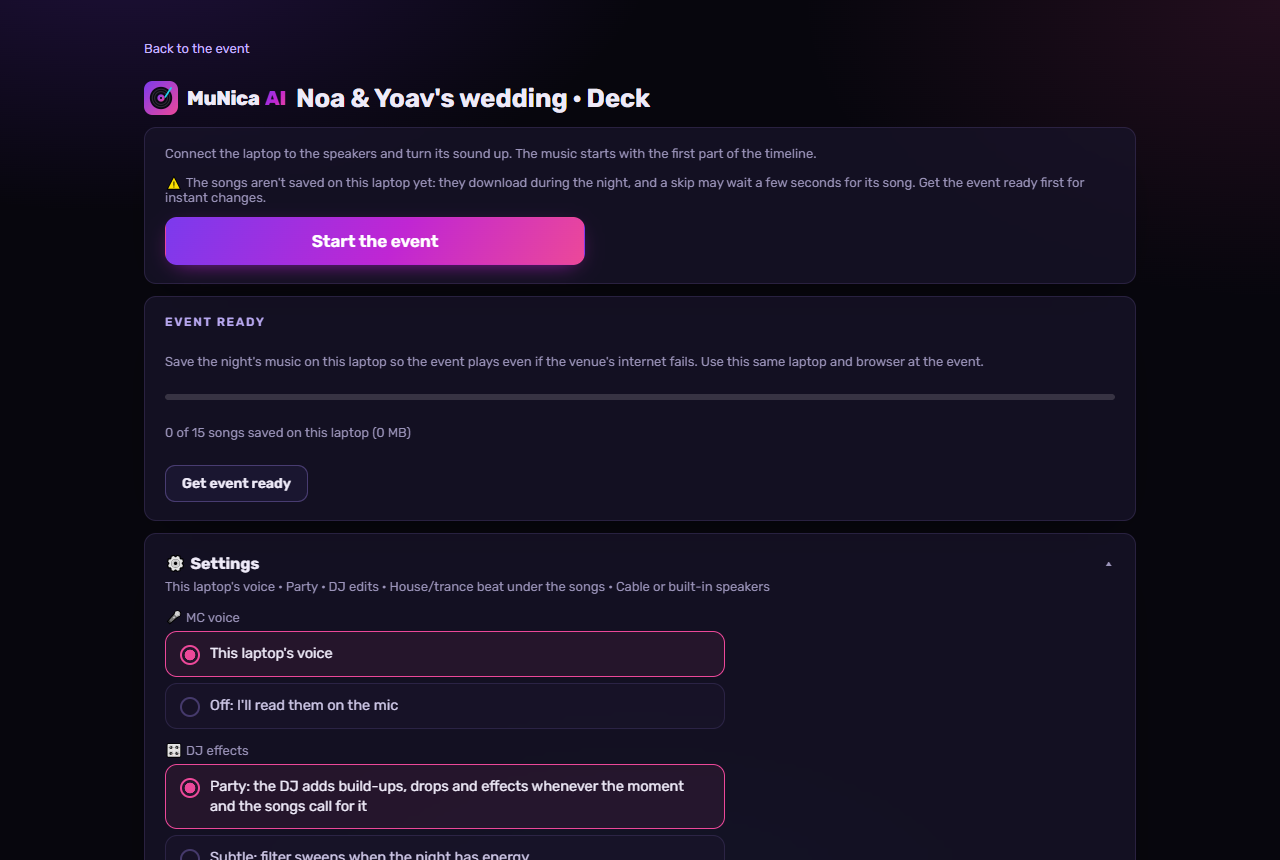
Press Run the event to open the Deck. Planning is free; to play the night live, pay for this event or use a monthly plan. Then press Get event ready: the night's music is saved on this laptop, so it plays even if the venue's internet fails.
- Do it at home, the day before, on the same laptop and browser you take to the event.
- In Settings: the MC voice, DJ effects, DJ edits (shorter songs), the dance beat, Clean mode (beeps swear words) and the speaker type.
- Use Play a test sound to check the speakers.
6Start the night
At the venue: plug the laptop into the speakers and its charger, turn its sound up, and press Start the event. The DJ follows the timeline on its own - mixing, moments, breaks and announcements, on time.
- Skip a song, play the next part now, add 5 minutes, raise or lower the energy, or take the mic (the music goes down while you talk).
- If the page closes, open the Deck again and press Resume: the night carries on from where it is.
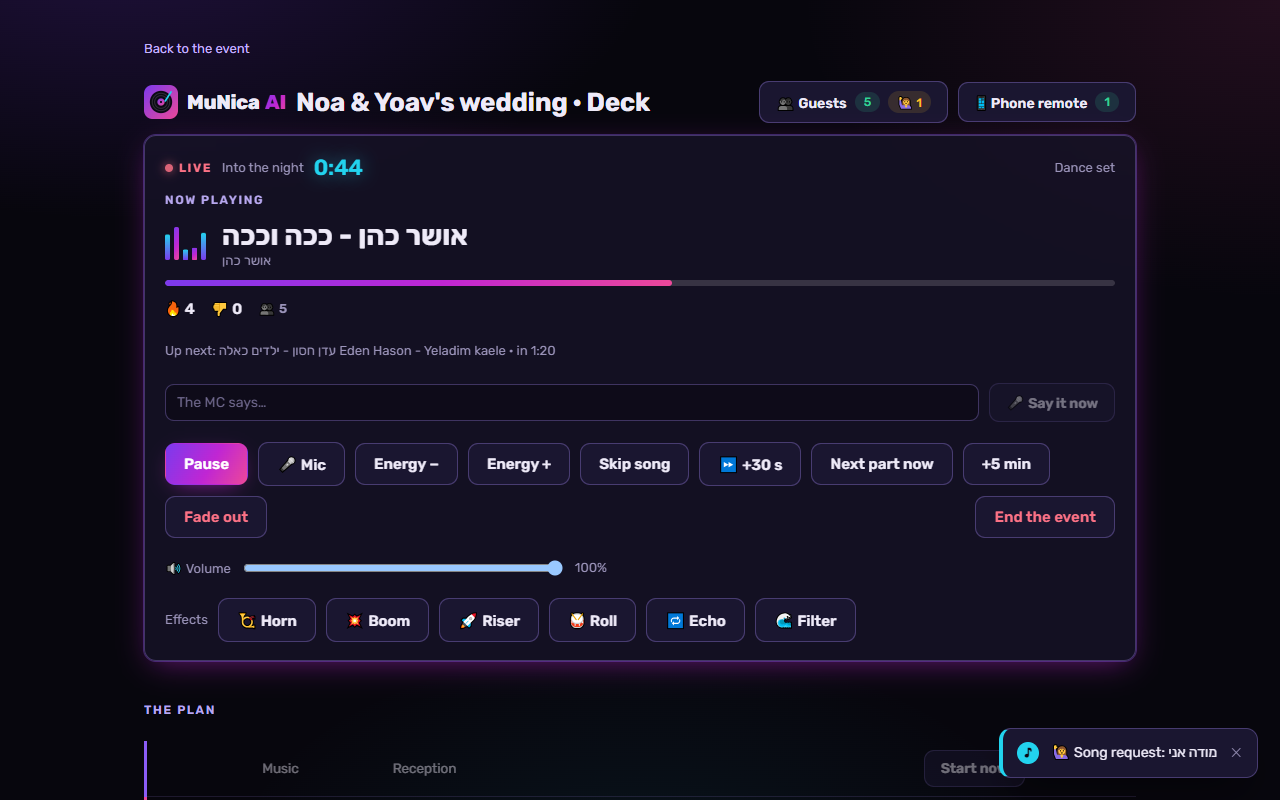
7Run it from your phone
On the Deck, press Phone remote and scan the QR code with your phone. Now you can do everything from anywhere in the venue - no sign-in needed.
- Anyone with that code controls the music: keep it to yourself.
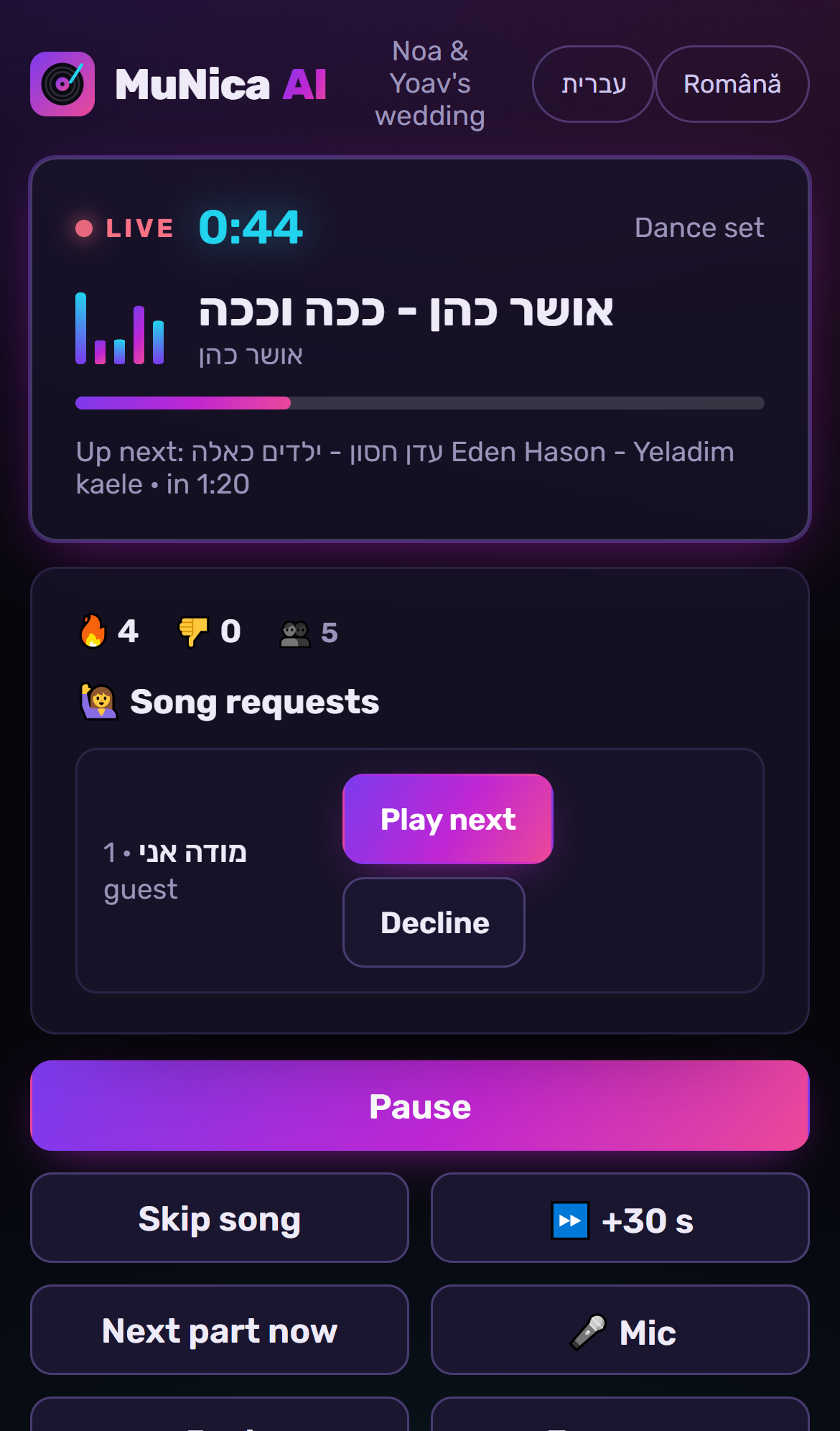
8Let the guests join
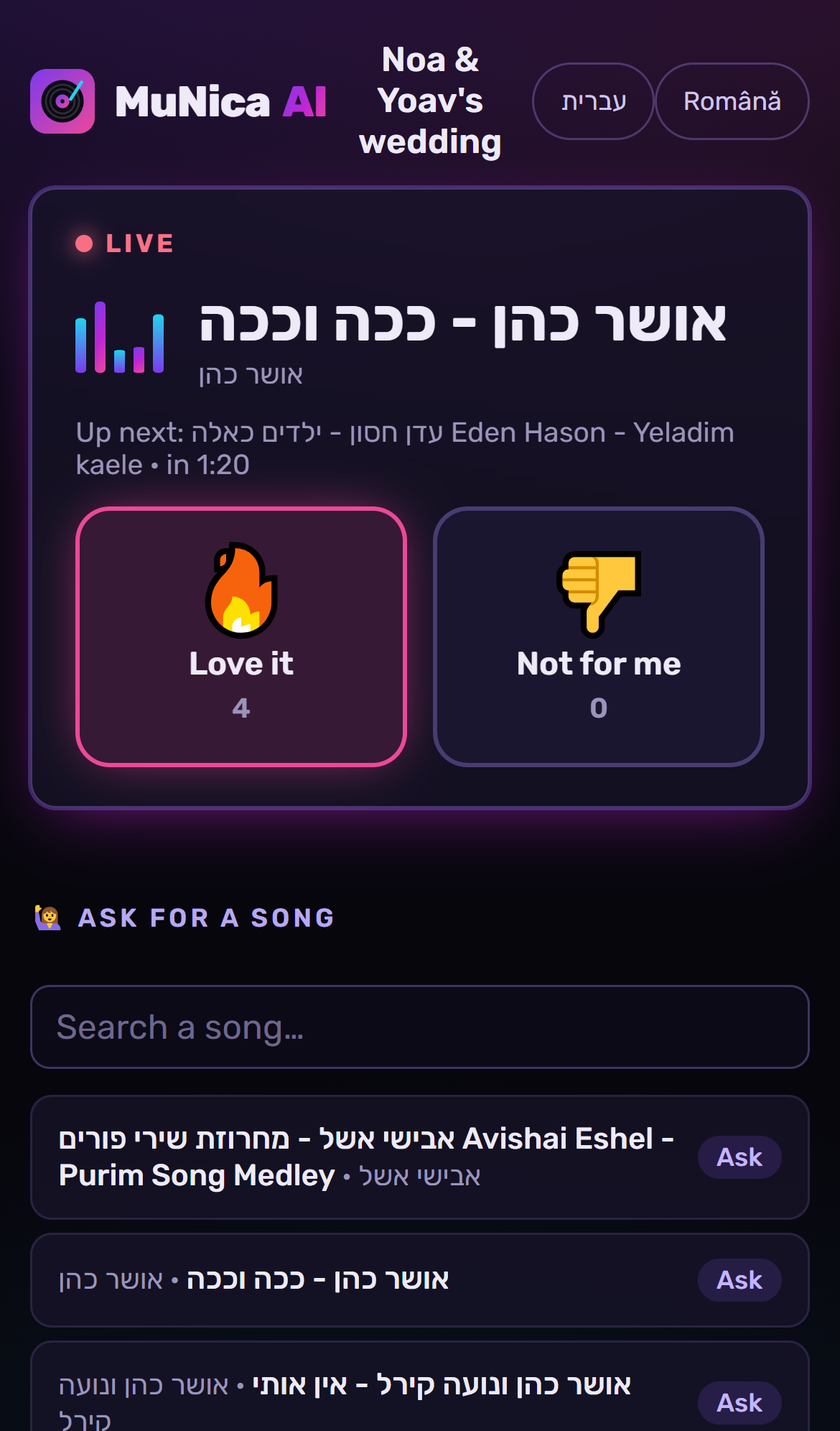
Press Guests on the Deck and show the QR code on a screen, or print it for the tables. Guests vote on the songs and ask for songs from their phones - no sign-in, and they stay anonymous.
- You decide: approve each request, or let them play on their own. Like a DJ, a request plays in a part it suits, in the version that fits best.
- Songs they ask for that you don't have are saved on the event's Music tab, with where to get them.
💡 Tips
- Try it first, free: on the Deck, before paying, the free test run plays up to 10 minutes of your real night, from any part (3 test runs per account).
- Upload more songs than you think you need: about 20 per hour of dancing, so the DJ has a choice and doesn't repeat.
- The AI actions (drafts, MC lines, song ideas) come with an allowance in your plan; you can top it up with AI credits, or use your own AI keys (Account).
- Public-performance licences (ACUM, PRS, ASCAP…) are the venue's or the host's responsibility.
Questions? Write to us: mssoftwareitdev@gmail.com